
MOTIONLLM ASSISTANT / 03
Connect your cloud account
Authorize the Unreal plugin in your browser, refresh credits and understand cloud job progress.
Sign in from Unreal#
- Open the MotionLLMAssistant panel and select MotionLLM Cloud (credits) as the Execution Backend. This is the default for a fresh installation.
- Click Sign in to MotionLLM Cloud. Your browser opens the account portal.
- Sign in or create an account. Check the account shown in the connection request, then choose Authorize connection for the request you started in Unreal.
- Return to Unreal. Use Refresh connection and credits to check the connection and available balance.
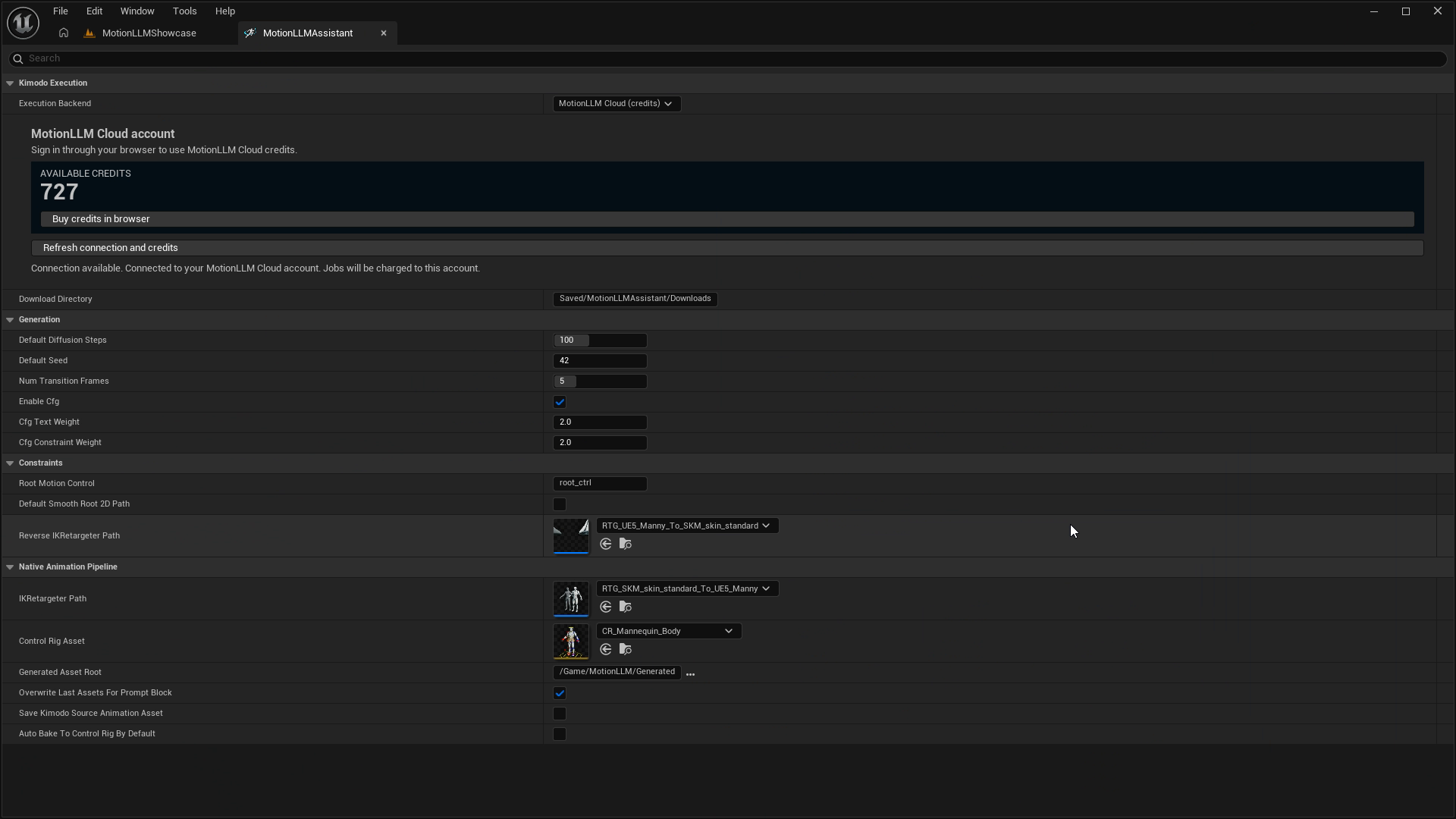
Session and credits#
The plugin keeps authentication tokens in editor memory. You may need to connect again after restarting Unreal. If browser authorization expires, start a fresh connection from the plugin.
Buy credits in browser opens the public pricing page. Use the same account for the purchase and plugin connection. Refresh the displayed balance after a purchase or completed generation.
Animation duration and generation time are different measurements. Cloud charging uses measured generation time after the model is ready, rounded up to whole credits; the clip’s length is not the credit price. Queueing and worker preparation are separate from that measurement. The server determines the final charge. See the current terms before purchasing.
Read the job progress#
| Stage | What it means |
|---|---|
| Queued | The request is waiting. Jobs on one account execute in sequence. |
| Preparing GPU / starting server | Capacity is being prepared. After a long period without server use, the worker may have shut down due to inactivity and need to start again (a cold start). This startup can take several minutes; it is not a wait required for every generation. |
| GPU assigned / connecting worker | A worker has been assigned and is being connected. |
| Generating | The worker is processing the motion request. |
| Downloading / importing | Unreal is validating the result, creating animation assets, retargeting and writing Sequencer output. |
Keep the editor and source sequence open while the operation completes. Job ID, pipeline stage, elapsed time and progress messages are available on the Prompt track. Some stages have no measured percentage.
Cancel or retry deliberately#
Use Cancel in the generation notification to stop the local operation. The plugin stops accepting the result and requests cloud cancellation. A job canceled before execution can stop without a generation charge. Once execution has started, stopping the local operation does not guarantee that the server stops or that no charge occurs.
Check the final job state and balance before retrying. A new Generate action is a new generation request. A successful cloud result can still encounter a later Unreal import or save error; inspect the pipeline stage before starting another paid generation.