
MOTIONLLM ASSISTANT / 04
Create your first animation
A complete first-use walkthrough: add a prompt, generate a short motion, inspect playback and save.
Start with one character and one action#
Complete setup and cloud connection first. Use a Manny-compatible character, the default retargeters and a saved Level Sequence. Start without constraint tracks so you can check the basic result.
Add and time the prompt#
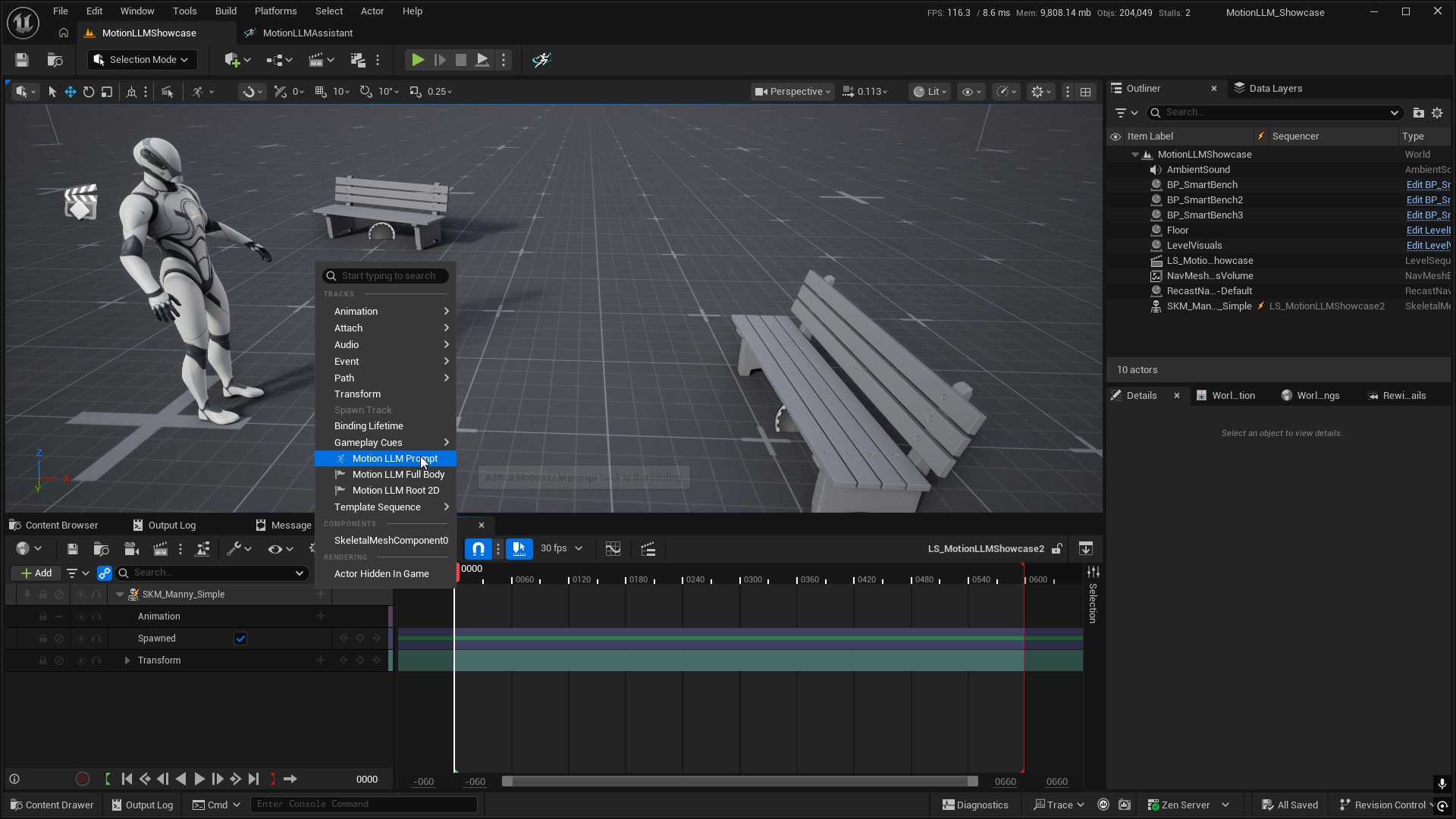
- On your character binding in Sequencer, open the add-track menu and choose Motion LLM Prompt.
- Use the track’s Prompt action to add a section. Set its range to four seconds. For example, at 30 fps, use frames 0–120.
- Edit the section’s prompt text to describe one action. Use this starter prompt:
A person walks forward at a relaxed pace. - Confirm the section is at least 2 seconds and no more than 10 seconds long. Keep the playback range over the section.
Generate and inspect#
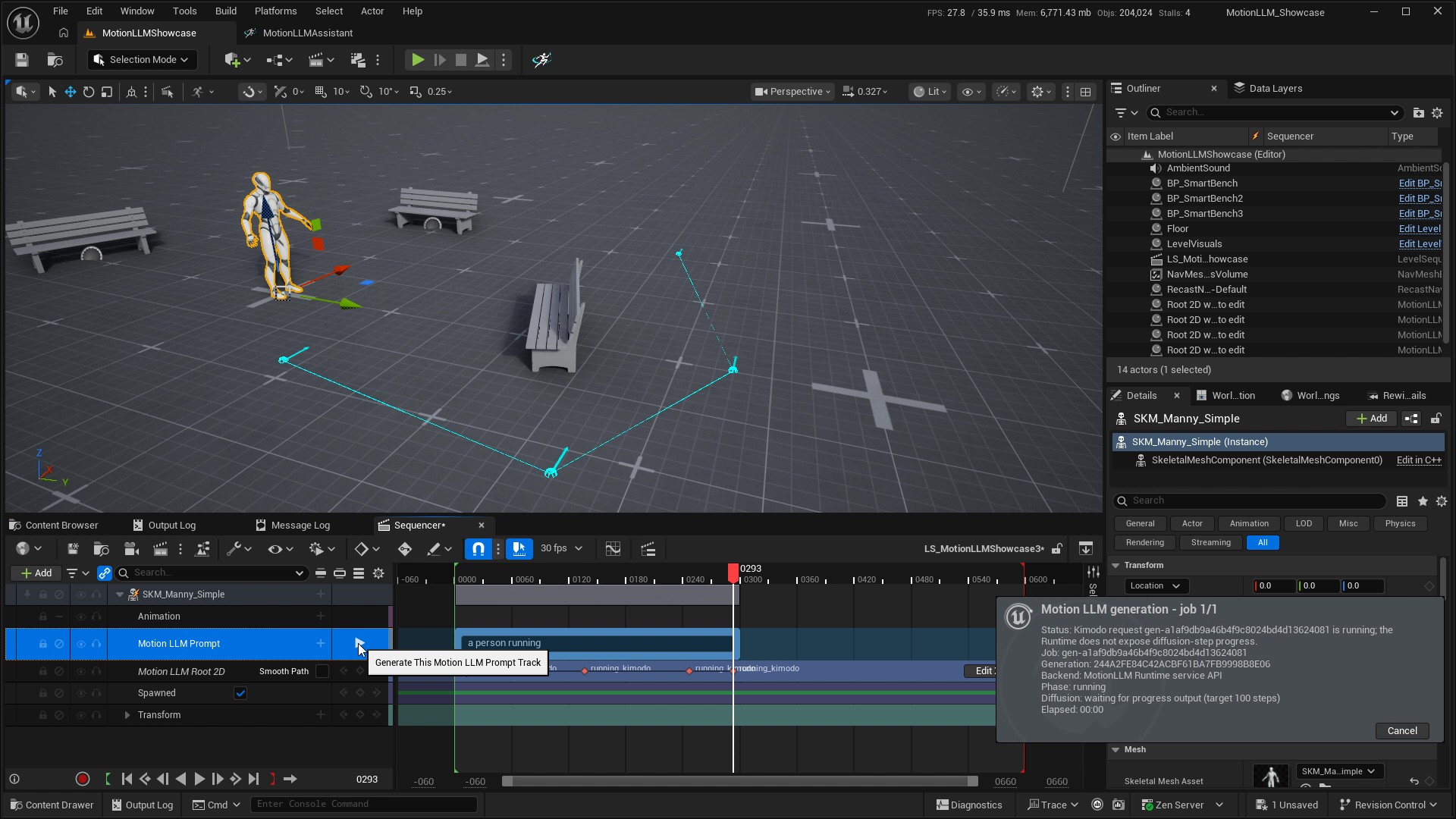
- Right-click the prompt track row and choose Generate This Motion LLM Prompt Track. Generate submits directly; make sure you intend to use cloud credits.
- Watch the notification and track status through generation and import. Do not submit repeatedly while waiting for the worker.
- After successful import, scrub and play the generated Skeletal Animation section on your character. Check timing, facing, foot contact and root movement.
- If Auto Bake to Control Rig is enabled, a separate editable rig take is also created. It starts deactivated; the Skeletal Animation output remains active for playback.
- Save your Level Sequence and keep the generated target AnimSequence. Generation includes a sequence-save stage; verify that it succeeded.
Make one deliberate change#
Change the wording or Seed and generate again to explore a variation. For a directed trajectory, add Root 2D waypoints. For a specific body pose, use Full Body capture. For direct key editing, activate an editable Control Rig take.
If the result does not appear, start with Troubleshooting and the reported pipeline stage.