
MOTIONLLM ASSISTANT / 09
Refine the animation with Control Rig
Create editable rig takes automatically or manually, edit native keys and preserve earlier takes.
Auto Bake to Control Rig#
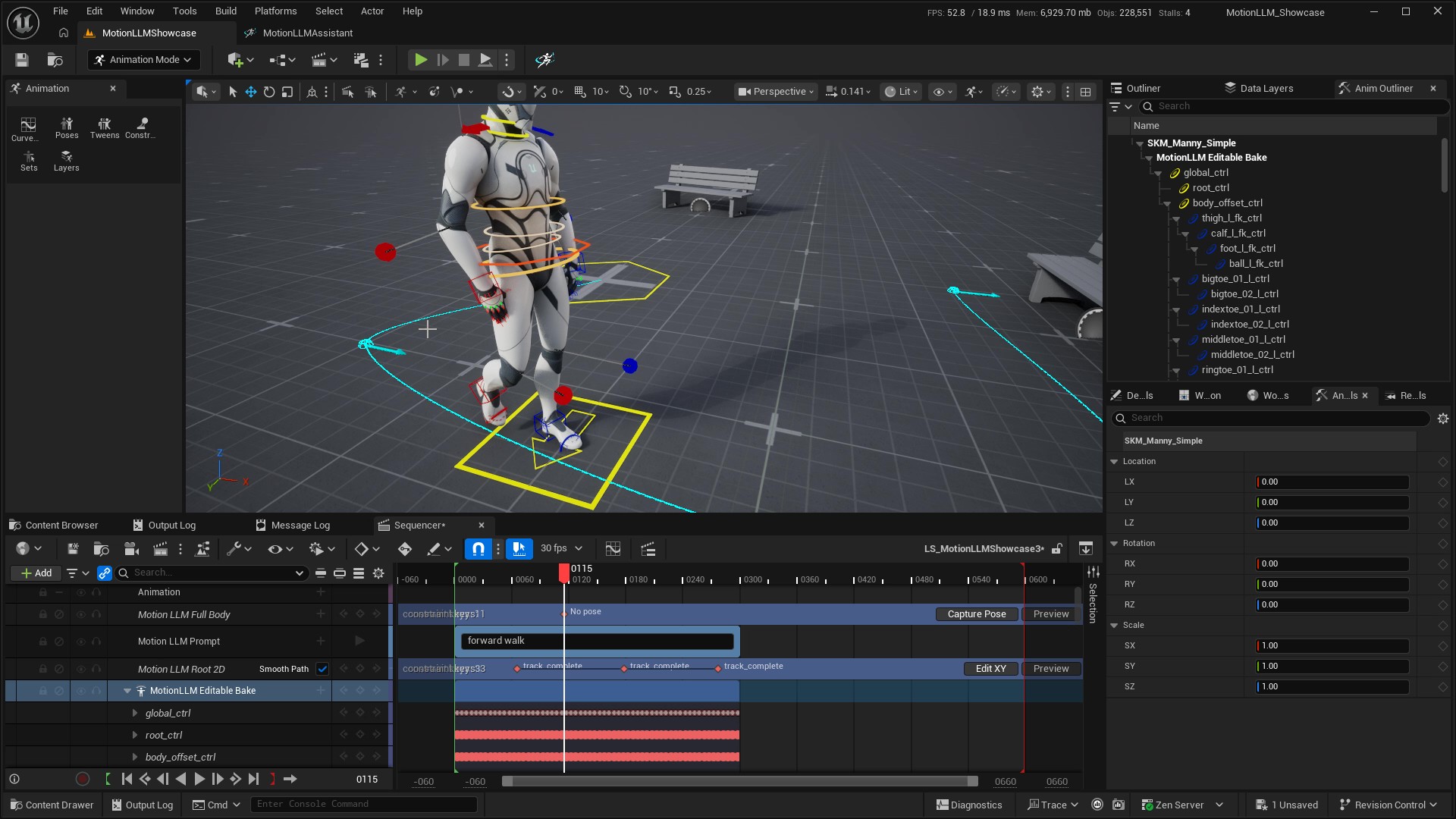
Enable Auto Bake to Control Rig in the Prompt track Details or context menu. After a block generates and retargets successfully, the plugin inverse-bakes its target animation into a separate Control Rig take.
The new rig track starts deactivated so that the generated Skeletal Animation remains the active playback output. The default for new Prompt tracks is enabled; existing tracks keep their own setting.
Bake an existing result without generating again#
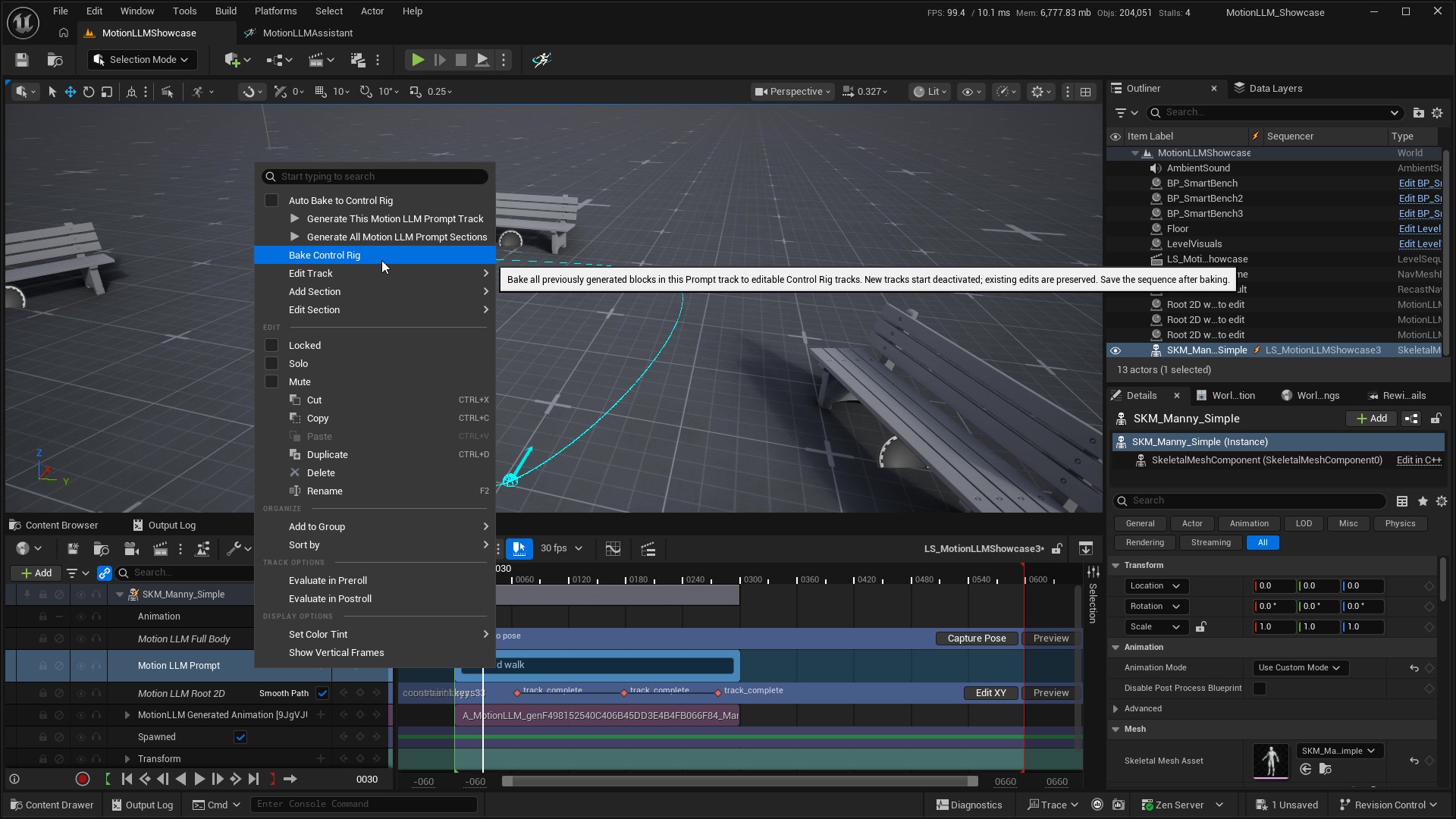
Right-click the Prompt track and choose Bake Control Rig to bake its previously generated blocks, once per unique block. To bake one block, use Bake Generated Block to Editable Control Rig in its section menu.
Manual bake is unavailable when there is no generated output, during generation, or when the sequence is read-only. It works from the existing target animation and does not submit a new cloud generation.
Edit and use a take#
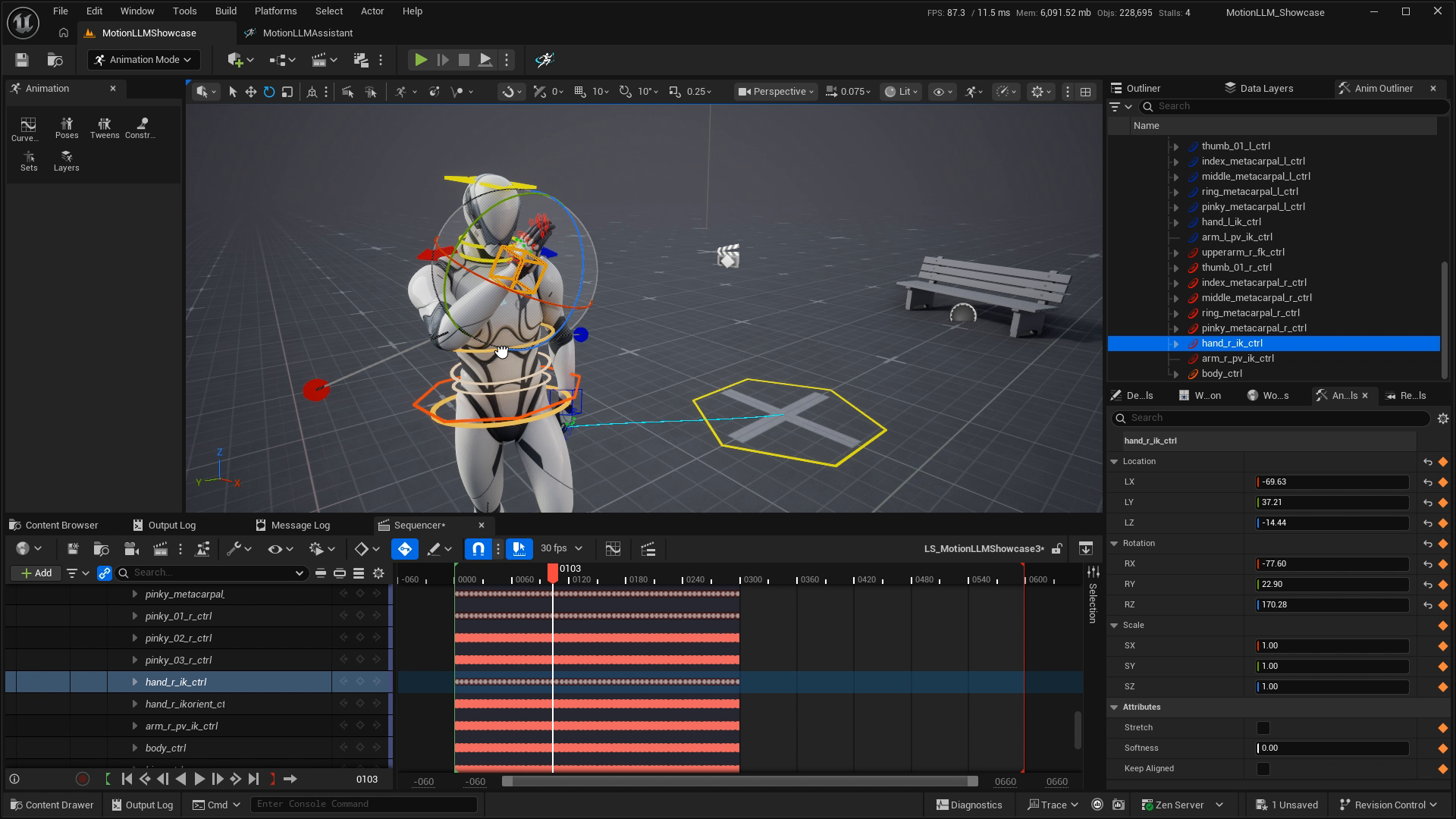
- Activate the editable Control Rig track you want to work on. Keep unrelated rig takes deactivated to avoid competing evaluation.
- Edit and key the controls in Sequencer. The configured Control Rig must support Backwards Solve for inverse baking.
- To guide another generation, capture the edited pose on a Full Body track.
- Deactivate the authoring rig before reviewing a newly generated Skeletal Animation, and save the Level Sequence after manual edits or baking.
Preserve your edits#
Each bake has a separate identity. Regeneration preserves prior editable takes, and the plugin does not silently adopt or overwrite an unrelated user rig. Keep the take you want active and name your takes clearly.
If automatic bake fails after animation output was created, that valid animation is retained. Resolve the rig configuration or Backwards Solve issue and use manual bake instead of immediately regenerating.