
MOTIONLLM ASSISTANT / 10
Generated assets and saving
Find animation assets, understand regeneration and retain your sequence and editable takes.
What a successful generation produces#
| Output | Where to find it |
|---|---|
| Canonical Kimodo NPZ | The configured Download Directory. The Prompt track records the downloaded artifact path. |
| Target AnimSequence | The configured Generated Asset Root, /Game/MotionLLM/Generated by default. |
| Source AnimSequence | Persisted only if Save Kimodo Source Animation Asset is enabled. Otherwise it is used in memory for retargeting. |
| Skeletal Animation section | On the character binding in the focused Level Sequence, covering the generated block. |
| Editable Control Rig take | A separate, initially deactivated track when automatic or manual bake succeeds. |
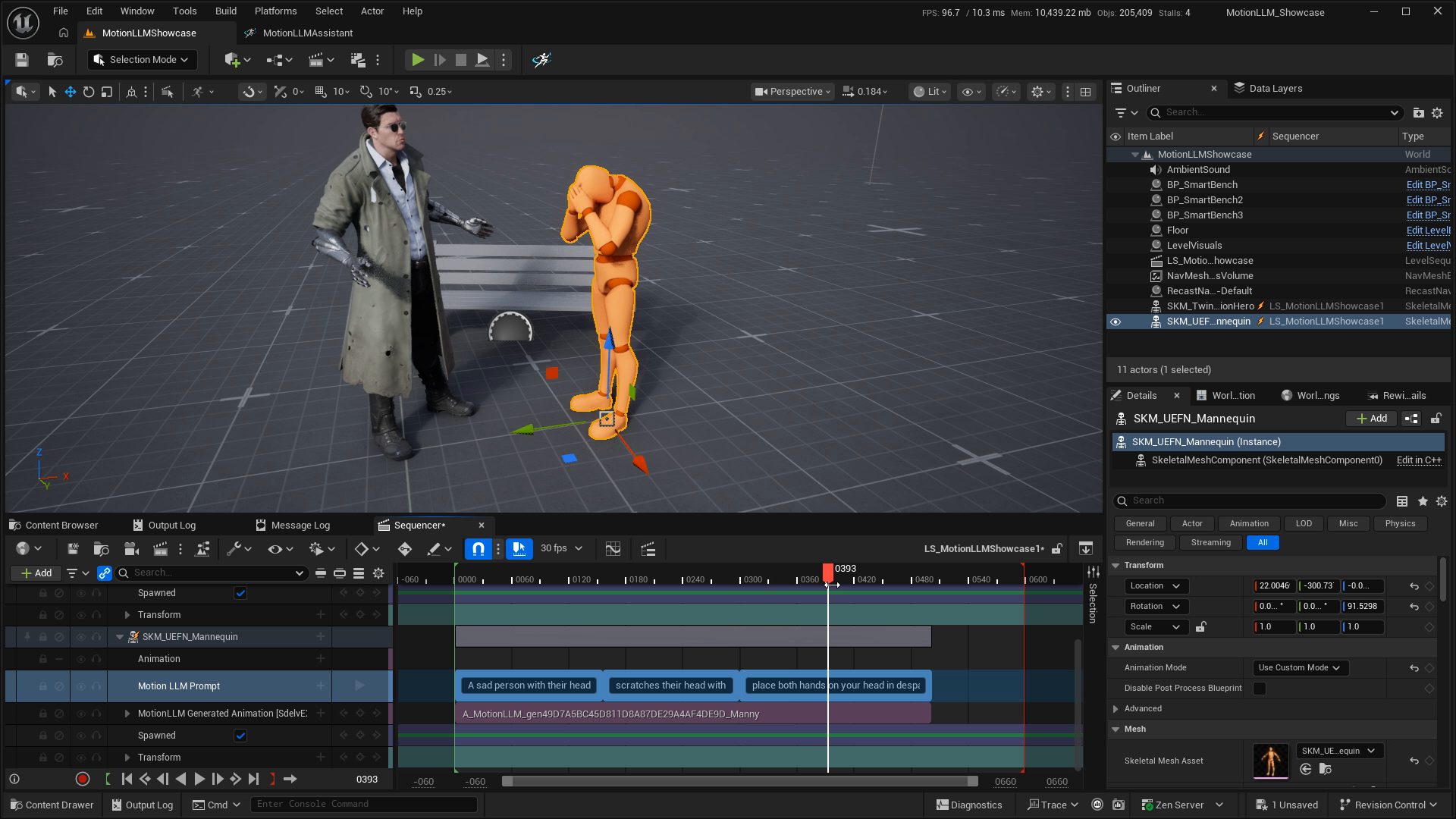
Save the complete result#
Generation saves outputs in stages and includes a save of the focused Level Sequence. Confirm the final status rather than assuming that a downloaded artifact means the whole operation completed.
Save the Level Sequence after moving constraints, changing Smooth Path, capturing poses or manually editing/baking a rig. Keep generated AnimSequences with the project and include the required assets in your source-control workflow. The plugin does not submit Perforce changes.
Regeneration and earlier versions#
Overwrite Last Assets For Prompt Block is enabled by default. Repeating generation for the same block reuses its stable asset identity. If you need the earlier animation as a permanent option, duplicate it before regenerating or disable that setting before producing new outputs.
Editable rig bakes have independent identities and preserve earlier edits. Splitting or joining prompt blocks changes their grouping; review the generated sections after reorganizing the timeline.
Use the animation in your project#
The target result is a native Unreal AnimSequence. You can use it with your compatible character and normal Unreal animation workflows. The plugin’s direct output is animation and Sequencer content; it does not expose a separate BVH production-import path.
Review playback before using an animation in a scene or gameplay: inspect the start and end, foot contacts, root trajectory and skeleton compatibility. Generation does not configure your gameplay movement or root-motion consumption settings.